SkyFi publishes your imagery orders as a STAC (SpatioTemporal Asset Catalog), an open specification for describing geospatial data as collections, items, and assets. Any STAC-compatible tool reads your imagery directly, so you connect existing software instead of building an integration.
Connect ArcGIS Pro, QGIS, or your own scripts to the endpoint and pull the imagery your organization has ordered.
STAC URL: https://app.skyfi.com/stac
Authentication: API key, passed in the x-skyfi-api-key request header
Your API key is in the SkyFi app under My Profile → API Keys Management. Treat it like a password. Anyone with it can reach your catalog.
SkyFi items include a STAC extension that adds SkyFi-specific fields to the core spec. Clients that support extensions read these fields automatically. The schema:
https://stac-extensions.skyfi.com/skyfi/v1.1.0/schema.json
The catalog works with any STAC-compatible client. Point it at the STAC URL and send your API key in the x-skyfi-api-key header. A request to the catalog root looks like this:
curl https://app.skyfi.com/stac \
-H "x-skyfi-api-key: YOUR_API_KEY"
Have your STAC URL and API key ready before you start.
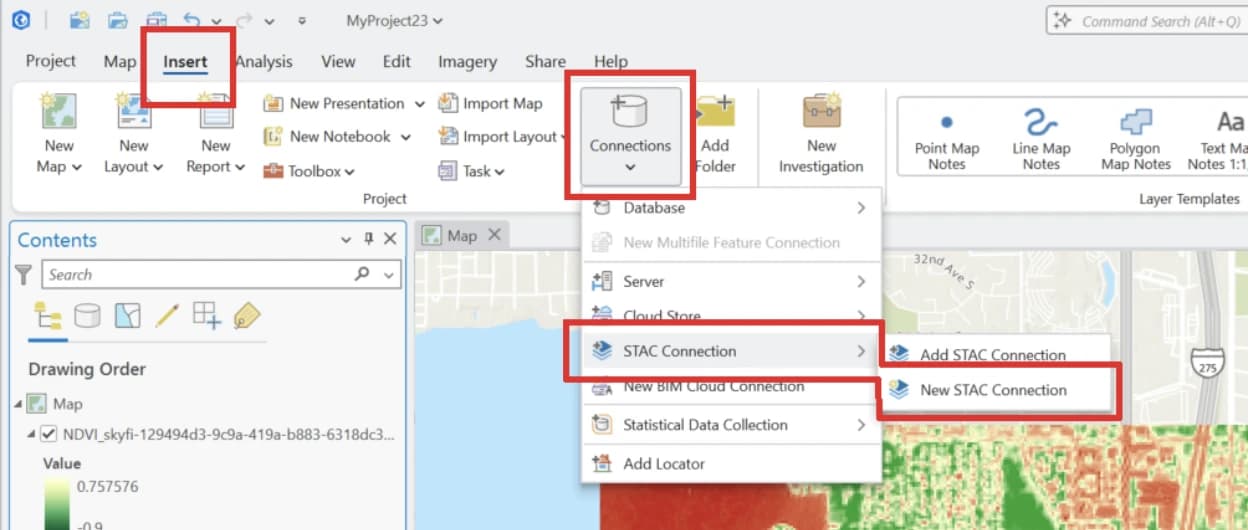
On the Insert ribbon, click Connections → STAC Connection → New STAC Connection.
Connection Name: enter a name, for example SkyFi STAC.
Connection: https://app.skyfi.com/stac
Custom Headers:
Name: x-skyfi-api-key
Value: your API key
Click Save, then OK.
In the Catalog pane, expand the new SkyFi STAC connection.
Double-click SkyFi STAC.astac to open the Explore STAC pane.
Apply filters as needed. To see only the orders you placed rather than everything ordered across your organization, filter by your SkyFi User ID.